At a glance
- Open it from
- GTM workspace → Preview (top right)
- Runs in
- Tag Assistant, in a separate tab
- Who sees your changes
- Only the browser you're testing in
- Sends real data?
- Yes, tags really fire
- When to use it
- Before every publish, and whenever tracking breaks
On this page
In plain English
Preview mode lets you try out your GTM changes on the real website before anyone else sees them. Click Preview in your workspace and Tag Assistant opens your site in a new window, loading your unpublished changes for your browser only. Visitors keep getting the published version.
As you browse, Tag Assistant records every event on each page: the page loading, clicks, form submissions and anything pushed to the data layer. For each one it shows which tags fired, which didn't, the value of every variable and what was in the data layer at that moment.
That makes it two things at once: the safety check you run before every publish, and the first place to look when tracking stops working.
Why it matters
- Untested changes affect every visitor. A broken trigger can stop conversions being recorded or fire a tag hundreds of times, and you won't find out until the reports look wrong days later.
- It shows you why, not just whether. GA4 reports only show data that arrived. Preview mode shows the tags that didn't fire and the exact trigger condition that stopped them.
- It saves hours of guesswork. Checking a variable or the data layer here takes a minute. Working backwards from reports can take days.
If you only learn one GTM skill properly, make it this one.
Where to find it
Start a Preview session
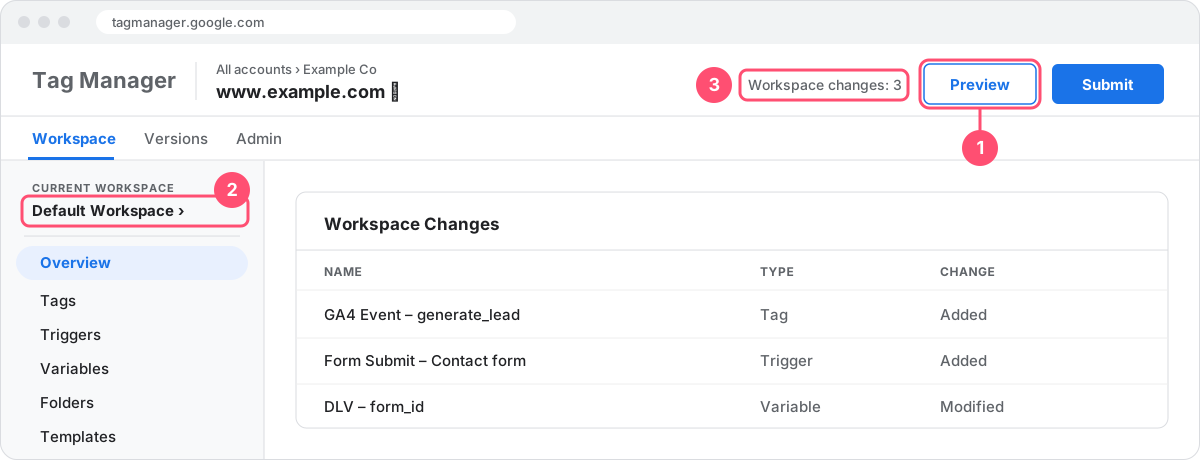
- In GTM, open the workspace with your changes and click Preview in the top right.
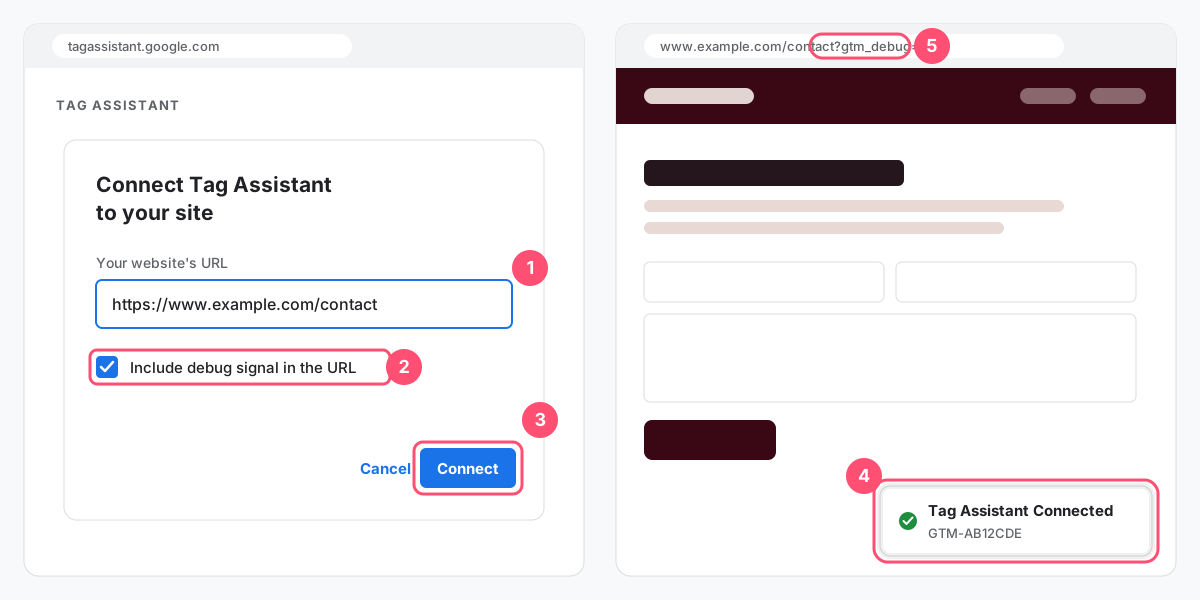
- Tag Assistant opens in a new tab. Enter the URL of the page you want to test and click Connect. Leave Include debug signal in the URL ticked unless it causes problems on your site.
- Your site opens in a new window with a Tag Assistant Connected badge in the bottom-right corner.
- Go back to the Tag Assistant tab and click Continue. Then use the site window the way a visitor would: click buttons, submit forms, add to cart.
Read the results
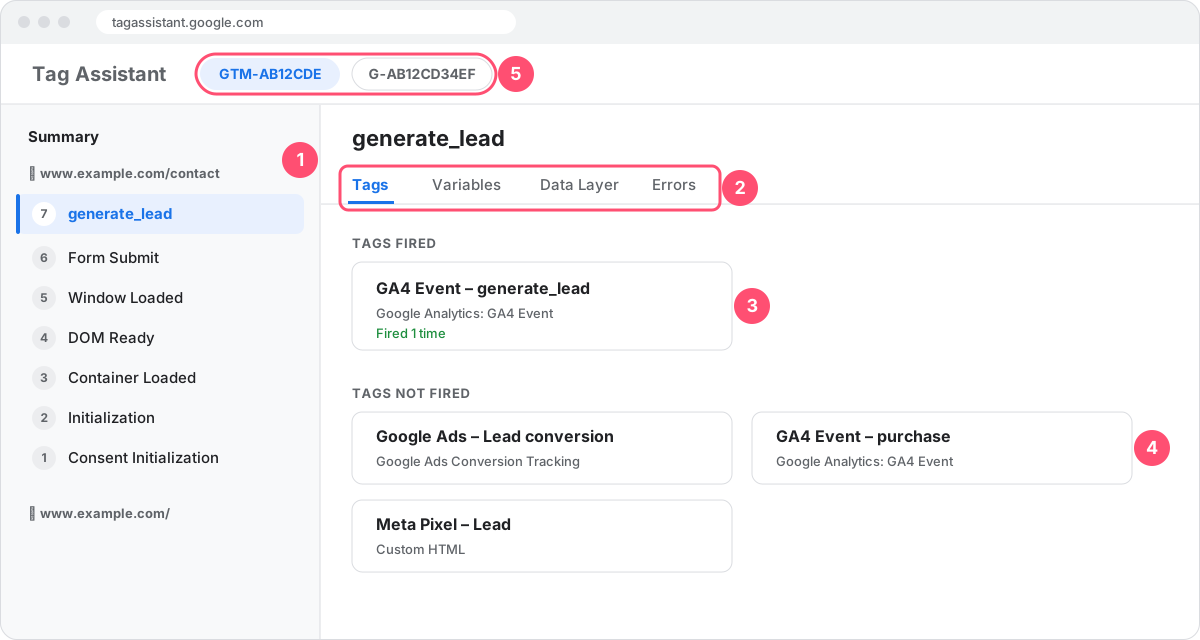
- In the Summary column, click the event you're interested in, for example Form Submit or a custom event such as
generate_lead. - On the Tags tab, check the tag you expect is under Tags Fired. Click it to see the values it sent.
- If it's under Tags Not Fired, click it and scroll to Firing Triggers. A red cross marks the condition that failed.
- Use the Variables and Data Layer tabs to see the exact values the trigger was checking at that moment.
Finish the session
Close the site window and the Tag Assistant tab. Nothing is published, so there's nothing to undo. If you change anything in GTM, click Preview again to test the new version, because an open session won't pick up your edits.
 (opens full size in a new tab)
 (opens full size in a new tab)
What it looks like
Tag Assistant has the same layout on every site:
- Summary (left): a timeline of every event, grouped by page, with the newest at the top. Earlier pages stay in the list, so you can still check what happened before a link click or redirect.
- Tags, Variables, Data Layer and Errors tabs: what happened at the event you've selected.
- Container and tag IDs (top): switch from your GTM container to a Google tag it loads, such as your GA4 Measurement ID, to see the hits actually sent.
Every page load starts with the same built-in events, in this order:
- Consent Initialization: for consent banner and consent mode tags, before anything else.
- Initialization: for the Google tag and other setup tags.
- Container Loaded: the page view (
gtm.js). Tags on the All Pages trigger fire here. - DOM Ready: the page's HTML has been read (
gtm.dom). - Window Loaded: everything, including images, has finished loading (
gtm.load).
After those you'll see interaction events such as Click, Link Click, Form Submit and Scroll Depth, plus any custom events your website pushes to the data layer.
 (opens full size in a new tab)
Not to be confused with
| Term | How it’s different |
|---|---|
| Preview mode | Tests your unpublished GTM workspace in your own browser. Shows tags, triggers, variables and the data layer. |
| Publishing | Makes a container version live for every visitor. Preview first, then publish. |
| GA4 DebugView | Shows the events GA4 actually received from test sessions. Use it after Preview mode to confirm the data arrived with the right parameters. |
| Tag Assistant Companion | An optional Chrome extension. It opens your site in a tab instead of a new window and can make connecting more reliable. |
| Environments | Load a specific container version on a staging or development site, without publishing it to the live site. |
Example
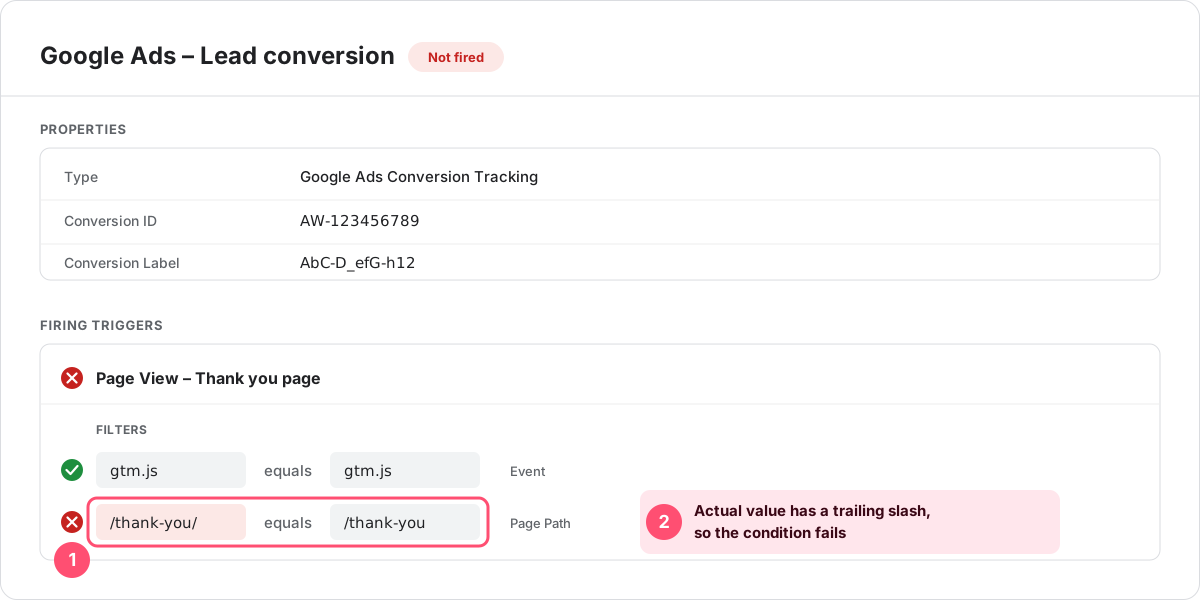
A Google Ads conversion isn't being recorded from the thank-you page. In Preview mode you submit the enquiry form, select Container Loaded under the thank-you page and find the Google Ads tag under Tags Not Fired. Opening it shows the trigger condition failed: the page path is /thank-you/ with a trailing slash, but the trigger checks that it equals /thank-you.
Changing the condition to starts with /thank-you fixes it. You restart Preview, submit the form again, see the tag under Tags Fired, then publish.
Troubleshooting
-
Tag Assistant won't connect to my site
- Check the site actually has your container installed. The ID in the connected badge, or in the page source, must match the container you're previewing.
- Turn off ad blockers and privacy extensions, or try a fresh Chrome profile.
- Allow pop-ups for tagassistant.google.com, or install the Tag Assistant Companion extension so your site opens in a tab.
- If the extra
gtm_debugparameter makes the page error or redirect, untick Include debug signal in the URL and connect again.
-
My changes aren't showing in Preview mode
- A session loads the workspace as it was when you clicked Preview. After editing a tag, trigger or variable, click Preview again.
- Check you're previewing the right workspace. Each workspace has its own changes.
- Make sure the site loads the container you're editing. Staging and live sites sometimes use different containers.
-
My tag is under Tags Not Fired
- Select the event where the tag should have fired, such as the Form Submit or the page view on the thank-you page.
- Click the tag and look at Firing Triggers. A red cross marks each failed condition, with the actual value shown next to the expected one.
- Fix the condition. Common culprits are trailing slashes, upper and lower case, and query strings in URLs.
If every condition passes, check for a blocking trigger or consent settings holding the tag back.
-
My click or form submission doesn't appear in the timeline
GTM only listens for clicks, form submissions and scrolling when a trigger of that type exists in the workspace. Create the trigger (it can be set to fire on some events only), restart Preview and try again.
Many modern forms submit with JavaScript and never trigger GTM's form listener. In that case, ask your developer for a data layer event when the form succeeds, or use an element visibility trigger on the thank-you message.
If Click or Form variables are missing from the Variables tab, enable them under Variables → Configure.
-
The page changes before I can see what fired
Tag Assistant keeps earlier pages in the Summary column. After you land on the next page, scroll down to the previous page and select the click or form event there.
-
My test visits are showing up in GA4 reports
Preview mode fires tags for real, so GA4 receives your test events, which is also why they appear in DebugView. Set up a developer traffic or internal traffic data filter in GA4, and take care when testing purchase or Google Ads conversion tags.
 (opens full size in a new tab)
Best practice
- Preview before every publish. Even a small change can break a trigger another tag relies on.
- Test the whole journey. Submit the real form, complete a test checkout and click the actual buttons, on desktop and mobile screen sizes.
- Check what was sent, not just that it fired. Click the tag to check its parameter values, then confirm the event arrived in GA4 DebugView.
- Test when tags should not fire. Make sure a conversion tag doesn't fire on a failed form submission or when the thank-you page is refreshed.
- Restart Preview after every change. An open session won't pick up your edits.
- Name tags so they're easy to scan. Names like
GA4 Event – generate_leadmake the Tags Fired list readable at a glance. - Keep test data out of your reports. Use GA4's developer traffic filter, and avoid real payments when testing purchases.
- Preview old versions to find when something broke. Under Versions, any past version can be previewed without publishing it.
Common questions
Can visitors see my changes while I'm in Preview mode?
No. Only the browser connected to Tag Assistant loads your unpublished changes. Everyone else gets the published version until you submit and publish.
Does Preview mode send real data to GA4 and Google Ads?
Yes. Tags fire normally, so GA4 receives your test events and Google Ads tags can record conversions. GA4 marks Preview traffic as debug traffic, which is why it shows in DebugView and can be excluded with a developer traffic filter.
What's the difference between Preview mode and DebugView?
Preview mode shows what GTM did: which tags fired and why. DebugView, in GA4, shows what GA4 received. Use both: Preview mode to check the tag, then DebugView to confirm the data arrived with the right parameters.
Why does a tag show as fired but nothing appears in GA4?
"Fired" means GTM ran the tag, not that GA4 accepted the data. Check the Measurement ID, consent settings and ad blockers, then look in DebugView to see whether the event arrived.
Do I need the Tag Assistant Chrome extension?
No, Preview mode works without it. The Tag Assistant Companion extension is optional. It opens your site in a tab rather than a new window and can make connecting more reliable.
Can I preview an older version of my container?
Yes. Go to Versions, open the menu for the version you want and choose Preview. It's a quick way to check whether a problem existed before a recent change.
Official documentation
- Preview and debug containers (opens in a new tab) Tag Manager Help
- Troubleshoot with Tag Assistant (opens in a new tab) Tag Assistant Help
- Monitor events in DebugView (opens in a new tab) Analytics Help
- Environments (opens in a new tab) Tag Manager Help
Last reviewed